
How do I manage items in my subscription?Updated 4 months ago
You can add one-time products, permanently add subscription items, update quantities, swap products, or remove items directly from your subscription settings.
Please note that subscription changes must be made no later than 24 hours before your scheduled order processing date.
How to Add a Product to Your Subscription
- Log into your account here.
- Under Active Subscriptions, locate the subscription you would like to manage and select Edit Subscription.

- Scroll down to the Add Product section.
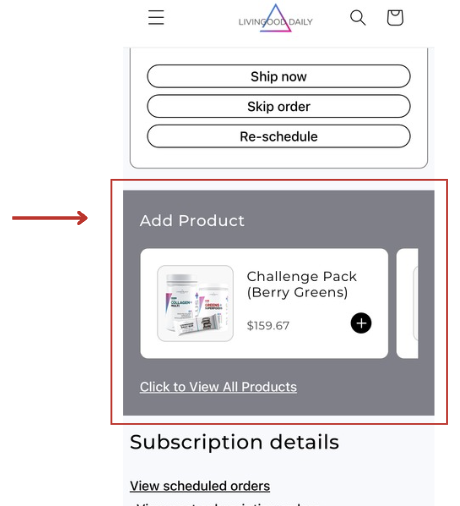
- You can either:
- Select a product shown in the product carousel, or
- Select Click to View All Products to search for a specific item.
- Select the item you would like to add.
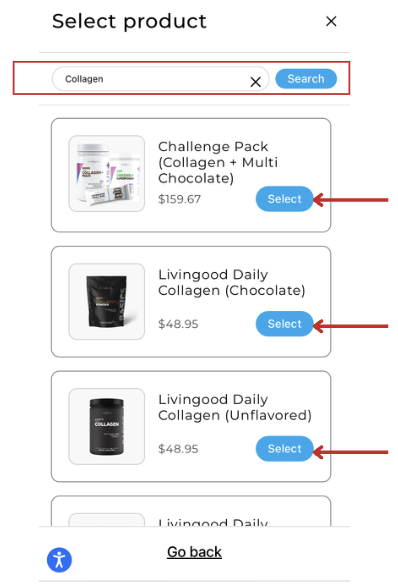
- Choose:
- The quantity you would like to receive
- Whether you would like the item added to your next order only as a one-time purchase or added permanently as a recurring subscription item
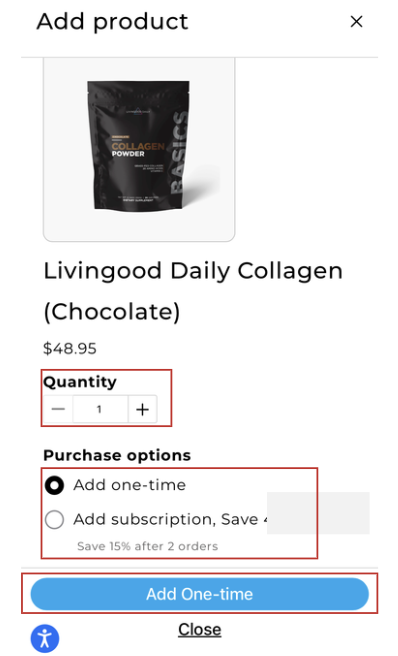
- Select the blue confirmation button to save your changes.
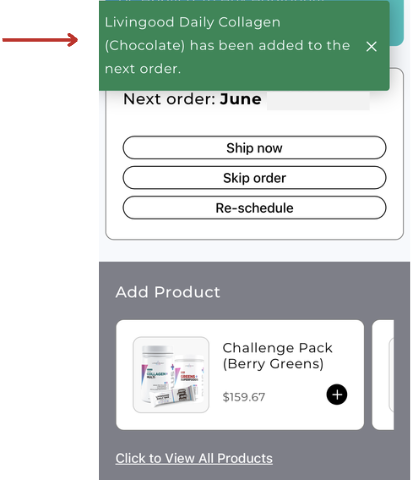
Once added, a confirmation message will appear showing the item was successfully added to your subscription.
Please note that one-time items added to your order do not receive subscription pricing or subscription discounts.
Updating Existing Subscription Items
If the item is already included in your subscription, it will not appear in the Add Product section again.
To update an existing subscription item:
- Locate the item in your subscription and select Edit.
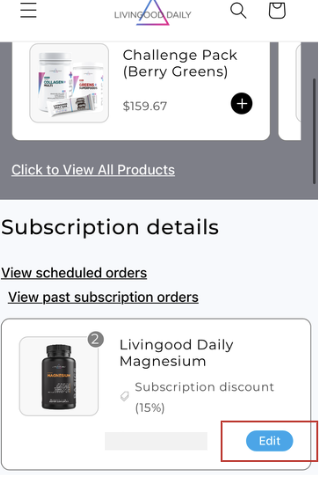
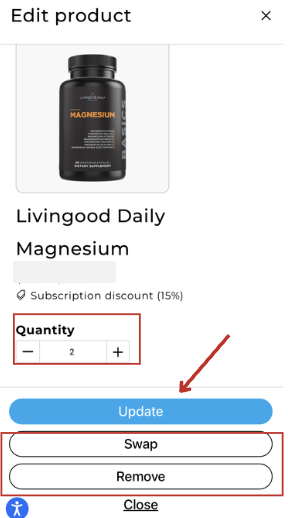
- From there, you can:
- Update the quantity
- Swap the item for a different product
- Remove the item from the subscription
- Select Update to save your changes.
Please note that if changes to your subscription cause the order total to fall below $99, an $8.95 shipping fee may apply.
If you would like to skip your next subscription order instead, check out this article for instructions on how to skip a shipment.